Thursday, September 22, 2011

A Deep Dive Into Windows 8 All About it

After spending several days with the Developer Preview of Windows 8 on a PC, it's clear that Microsoft's new operating system -- which offers two separate interfaces, Metro and Desktop -- is a transitional one between traditional computers and mobile devices. All of Microsoft's energy and creativity has been devoted to the new Metro interface; there's very little new of note for the old-fashioned Desktop.
As I tested Windows 8, I found myself wanting to use it on a tablet instead of my PC, because the big-tiled Metro was so much more visually appealing than the traditional Desktop, with a more intriguing feature set. After using Windows 8 for some time, it's clear that Metro is the future of Windows, and the Desktop the past.
Windows 8: A Deep Dive into the Developer PreviewWindows 8's Metro interface is more visually appealing than the traditional Desktop.
An interesting note: You usually expect developer previews and betas to suffer from performance woes because code hasn't yet been optimized, and bugs may slow things down. However, the Windows 8 Developer Preview is surprisingly fast, even on my aging test machine. I installed it on a dual-boot Dell Inspiron E1505 with 1GB of RAM and a single-core Intel T2400 1.83GHz CPU, which is near the very bottom of the hardware requirements for Windows 8. Yet I found it to be extremely fast and responsive. In fact, it feels zippier than Windows 7 running on the same machine.
Clearly, Microsoft has done a great deal of work on optimizing Windows 8. There's good reason for that; if it's going to work on a tablet, it needs to be fine-tuned.

Getting used to Metro

When I first started using Windows 8, I was surprised to see that the Desktop was no longer the command central for the operating system. You boot into Metro; Desktop has been relegated to just another app accessible from the Metro screen.
Metro has been clearly designed for tablets. Like Windows Phone 7, Metro's main interface is made up of large colorful tiles, each of which represents a different app and each of which can exhibit changing information, such as the latest news, social networking updates, weather and stocks.
In addition, Metro has a horizontal design, with tiles stretching off the right edge of the screen. On a tablet, you'll swipe to uncover new tiles; on a PC, you're relegated to dragging the bar at the bottom of the screen or clicking navigational arrows. Even after several days of use, I never got used to dragging or clicking to reveal the extra tiles; I longed for a touch screen so I could swipe instead.
Metro is customizable. You can drag tiles to new locations or customize select parts of the interface via its own Control Panel. You can change the picture on your Lock Screen and your user tile; change user account information; turn wireless on and off; turn on airplane mode and change settings for privacy, search and Windows Update. You can also change your home network settings via HomeGroup (introduced in Windows 7) and your sync settings.
In my initial test of Windows 8, I didn't use Metro that much. But over time I found myself migrating more to Metro when I was actively looking for information. The constantly changing information stream, including news stories, RSS feeds and updates from friends and acquaintances on social networking sites, is quite useful and almost hypnotizing. In Metro, instead of having to seek out information, information comes to you.

Metro apps

Metro apps run full screen like their tablet and Windows Phone 7 counterparts. On a desktop, they take getting used to, because there's no Windows menu -- although after a few days, I became more comfortable using them. You can't change their size or shrink them, though. Switching between them on a PC is kludgy and requires the old Windows standby, Alt-Tab. I eventually discovered another way to do it: Hold the mouse pointer at the far left of the screen until a small icon for the previous app appears and then click to switch to it. All in all, though, Alt-Tab is easier.
Unlike earlier versions of Windows, which had few consumer-level apps built in, Windows 8 offers a plethora. The Metro screen is filled with Microsoft-written games, social networking tools and other apps. They're designed for a tablet or smartphone, although they're usable on a PC as well.
The basic News, Weather and Stock apps are straightforward and simple to use. The News app, for example, offers a list of dozens of RSS news feeds organized by topic, including Business, Design, Entertainment, Lifestyle, Music, Technology and News. Click the ones you want, and they're added to your feed. You can also directly type in the URL of a feed you want to add.
Windows 8: A Deep Dive into the Developer Preview 
The News app offers a list of dozens of RSS news feeds organized by topic. Once you set your apps to grab the data, you'll be able to see constantly changing information in the tiles themselves -- mostly, summaries or headlines -- without having to open the apps. If you see something that interests you, click the tile to be sent straight to that app -- but not necessarily to the specific information you're seeking. For example, when I clicked a headline about the current Republican nomination race on a news tile, I was sent to a page with all the news headlines and had to look for the story. On one occasion, the headline that appeared in the tile wasn't even immediately visible; I had to scroll to find it.

Installing the Windows 8 Developer Preview

To download the Windows 8 Developer Preview, go here: http://msdn.microsoft.com/en-us/windows/apps/br229516
To install it on a PC, you download an .ISO file, burn it to DVD, and then install over a PC with Windows XP, Windows Vista or Windows 7. There are two versions of the 64-bit Windows 8 Developer Preview: one with developer tools, and one without the tools. The 32-bit version of the developer preview doesn't include developer tools. The 64-bit version with developer tools can only be installed as a clean install -- accounts, files and settings on the machine on which you're installing will be deleted.
With the 32-bit and 64-bit versions without developer tools, you'll be able to retain accounts, files and settings if installed over Windows 7 or Windows Vista. You'll be able to retain only accounts and files if you install over Windows XP. As with all previews and betas, the usual caveats apply about not installing it on a production machine.
Installation of the preview is straightforward and requires multiple reboots. On my machine, total installation time (aside from downloading and burning a DVD) took 50 minutes, but it may go faster on faster machines.

 I tried a few other apps as well. The Tweet@rama app is a simple, straightforward front-end to Twitter, and lets you create and read tweets. It's not nearly as useful as a full-fledged Twitter client such as TweetDeck, but for the basics, it's fine. The Socialite app performs similar functions for Facebook. Other apps include a location-based app called NearMe, an app for setting alarms and a paint app called PaintPlay.
One problem with these apps, though, is that there is no standard way to interact with them on a PC. For example, in the News app, right-clicking brings up a context-sensitive menu -- if you're reading a news article you'll get navigation buttons, and if you're on a summary page, you'll get options for adding, refreshing and removing feeds. But if you're in the Zero Gravity game app, right-clicking does nothing. More standardization would be welcome.
Worse yet, there's no clear way to close down many of these apps. For example, Zero Gravity, which features intensely annoying music, doesn't have a menu or any way to shut it down -- so when you switch out of the game to the main Metro interface, the annoying music still plays in the background. Switch to the Desktop or run another Metro app, though, and the music thankfully goes away. In fact, I found that my workaround for closing most Metro apps was switch to the Desktop; after a few minutes, the Metro app I was running typically shut down.

The familiar Windows Desktop

All that being said, when it came to doing actual work such as using MIcrosoft Office, I ended up on the Desktop for the simple reason that that's where the serious applications were.
After you click the Desktop tile on the Metro screen, you'll feel at first as if you never left Windows 7 behind -- the interface looks and works almost identically to Windows 7. You'll see the familiar taskbar across the bottom with taskbar thumbnails, the Notification Panel on the right, the icons on the screen and so on.
Windows 8: A Deep Dive into the Developer Preview 
The search panel slides into place on the right side of the Desktop screen.There are some changes, though. Most noticeable is that the Start button has been thoroughly revamped. Clicking it sends you back to the main Windows Metro screen rather than popping up the familiar Start menu with a search box, folder navigation, a link to the Control Panel and so on. In the Metro interface, however, the Start button functions as a task switcher between the interface and any running apps.
If you want to find your various Windows options, you need to move your mouse pointer to the leftmost bottom corner of the Desktop; a menu pops up that gives you access to Settings, Devices, Share and Search. When you click one of these options, a panel slides into place on the right side of the screen to let you perform the task you've asked it to do. Select Search, for example, and the panel shows a search box, along with a variety of locations where you can search.
The Share button lets you share a screenshot using the Socialite social networking app. The Devices button, designed for printing, playing games and sending content to others, doesn't work in this version of Windows 8. And the Settings button lets you change only the most basic functions of the Desktop.
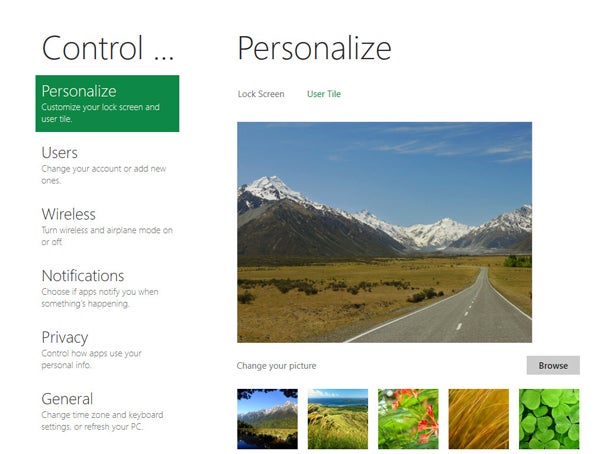
Windows 8: A Deep Dive into the Developer PreviewMetro's Control Panel also leads you to additional settings for the Desktop.One would expect to find the old Windows standby, the Control Panel, when you click Settings, but no -- instead, you'll have to head back to Metro and click the Control Panel tile, scroll to the bottom of the Metro Control Panel and click "More settings," which takes you to the old Control Panel. If the awkward, time-consuming navigation to get to the Control Panel isn't an indication of how little importance Microsoft attaches to the Desktop, I don't know what is.
There are a few other tweaks. For example, Windows Explorer now has a ribbon interface, a great improvement over its previous version.

Bridging different interfaces

Even after using Windows 8 for some time, I never got used to the dramatic differences between the Metro and Desktop interfaces. It never quite seemed as if it was a single operating system -- instead, it felt like two different OSes bolted together.
Making matters worse is that Metro apps don't show up on the Windows desktop. And although desktop apps appear in Metro, they're so well-hidden you may never realize they're there: With the exception of Internet Explorer, they're stuck all the way on the far right of the tiles so you have to scroll to get to them. And even when you run Desktop apps from Metro, they can't take advantage of Metro's ability to exhibit information via tiles. One hopes that will change in future versions of Windows 8.

Microsoft has made some small attempts to bridge the gaps between the interfaces. Metro and the Desktop share some basic navigation -- for example, in both of them, when you move your mouse to the bottom left of the screen by the Start button, you get the previously described options menu, along with the date and time, and notifications such as whether you're connected to a network and the power state of your computer.
Windows 8: A Deep Dive into the Developer Preview 
When you mouse to the bottom left of the screen, new options appear, along with the time and notifications.This is a good way to try and create commonalities between two very different interfaces, but it doesn't always succeed. In the Metro interface, the options are context sensitive, so when you're in an app and click Settings, for example, the settings will relate to that app. However, if you click Settings on the Desktop the results always pertain to the Desktop, whether or not you're currently using an app.

Windows 8 and the cloud

Windows 8 is clearly being designed with the cloud in mind as well. After installation, you're asked to enter a Windows Live ID, or to sign up for one if you don't already have one. Your Windows 8 machine is then linked to Microsoft's cloud-based Live services, including Windows Live SkyDrive, which is expected to become the central location for your files.
On this Developer Preview running on a PC, however, only a few cloud services were available, something that will likely change in the future. In the Metro interface, when I clicked Control Panel, I found Sync PC Settings, which are designed for a cloud-based world in which people use multiple devices, including Windows-based PCs, tablets and smartphones.
By default, Sync is turned on, which means that your global settings -- such as app settings, screen lock picture and themes, browser settings, taskbar and Windows Explorer settings, and some passwords -- are automatically synced among all your devices. You can decide whether to sync devices that use a metered data plan.
Surprisingly, nowhere could I find settings for automatically syncing actual data and files via Microsoft's cloud http://msdn.microsoft.com/en-us/windows/apps/br229516 service Windows Live SkyDrive. Possibly that will appear in a future Windows 8 version.

Two ways to use Internet Explorer

Windows 8 Developer Preview comes with not one, but two versions of Internet Explorer 10, one for the Metro interface and the other for Desktop. The underlying engine, which supports CSS3, HTML5 and Flash, is the same for both, but the surrounding interface is dramatically different.
Windows 8: A Deep Dive into the Developer PreviewWindows 8 has two versions of Internet Explorer 10. The version shown here is the Metro version, designed for tablets.In the Metro version, you browse full screen, with no controls immediately visible for typing in a URL, adding bookmarks, refreshing a Web page or switching between tabs. Right-click anywhere on the page, though, and those controls appear at the top and bottom of the screen. The top of the screen shows clickable thumbnails of all open tabs. You click on the X to close the tab and click the + to open a new tab, at which point a screen appears that shows pages that you frequently visit, as well as sites that you've pinned so that they're always visible whenever you open a new tab. These pinned sites also appear on the main Metro interface.
The Address Bar appears at the bottom of the screen when you right-click; it lets see your current URL and typing in a different one, go forward or back, refresh the current page, pin the current page, findtext on the current page and switch to the Desktop version of IE.
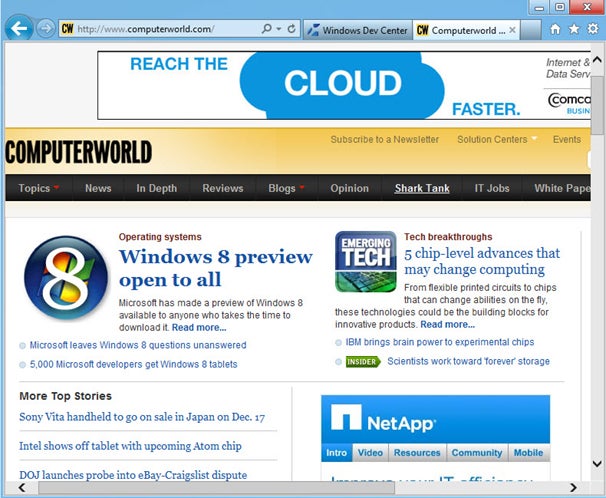
The Desktop version of IE 10 looks and works much like Internet Explorer 9, with the usual menu-less, tabbed interface.
Windows 8: A Deep Dive into the Developer Preview 
The Desktop version of Internet Explorer 10 looks and works like Internet Explorer 9.Because the underlying engine is the same, if you switch from Metro to the Desktop version, the Desktop version will have all of the currently open tabs, current URL, and so on.

The bottom line

Windows 8 on a desktop feels very much like a transitional operating system, attempting to bridge traditional PC-based computing and mobile computing done on tablets and smartphones. Even after several days of use, the experience was slightly awkward, and I never got over the feeling that I was using two separate operating systems -- Metro and the Desktop -- joined together by a slender thread.
I expect that tablet and smartphone users will rarely make their way to the Desktop, especially with the recent announcement that Microsoft will be developing a Metro version of Office.
In fact, based on this early Developer Preview, there may not be much for enterprises in Windows 8. Upgrading from Windows 7 or Vista to Windows 8 would likely be a problem for businesses because the Metro interface is so different from earlier Windows versions.
Given the amount of resources that Microsoft has spent on Metro, and the few it appears to have expended on the Desktop, I wouldn't be surprised if the Desktop will eventually fade away in future Windows versions. The main screen you boot into in Windows 8, Metro, calls out for a touch interface -- and Microsoft is clearly betting that touch-screen PCs will eventually become standard.
If that happens, and when there are Metro versions of applications such as Office, the Desktop will become even less important than it is now in Windows 8. Windows 7 may well be the last time that Windows' longtime primary interface, the Desktop, has center stage.
Preston Gralla is a contributing editor for Computerworld.com and the author of more than 35 books, including How the Internet Works (Que, 2006).



By Preston Gralla, Computerworld
Source: PCWorld


Tuesday, September 20, 2011

Google Wallet: A Hands-On in the Real World

Google's latest app debuts today on the Sprint Nexus S 4G, letting customers pay for items with a tap of their phone--but some parts of the tap-to-pay experience still need to be smoothed out.

The much-anticipated Google Wallet app debuts today--for now, available only on the Sprint Nexus S 4G phone. The app is the latest to use Near Field Communications (NFC) technology to facilitate payments--customers pay for items in brick-and-mortar shops by tapping their phone to a vendor’s PayPass reader, a small box for transmitting data that can be found in major retailers like Macy’s, Whole Foods, and McDonald’s. To get its app off the ground, Google partnered with MasterCard, which has been using NFC chips on some of its credit cards since 2003, and originally developed the PayPass reader.

I took Google’s anticipated new app out for a spin in San Francisco, and while it’s extraordinarily cool when it works, the experience isn’t seamless yet. The app itself stalled for a good 20 minutes once while registering a payment, but other than that it was really simple to use. More important, I found that the PayPass readers in merchants’ stores were often broken or malfunctioning, something Google and MasterCard need to fix quickly if this app is to become the revolutionary new method of payment it promises to be.

Setting It Up

Entering a PIN in Google Wallet.
Currently, the app works only on the Sprint Nexus S 4G phone, which is built with a special NFC antenna, and a chip that Google calls its “secure element,” which strictly controls transmissions from the NFC antenna and stores your payment information separately from your phone’s main OS. The Google Wallet app currently links only with Citibank MasterCards or Google Prepaid Cards (which you can use to load money from other debit accounts), although Google says it hopes to support all major credit cards soon. Finally, you can use Google Wallet only at the select vendors that have PayPass readers at the cash register.

When I received the phone, Google had already set up a PIN for me to access Google Wallet. Entering the PIN turns on the phone’s “secure element” chip, allowing transmissions between the NFC antenna and the PayPass reader. When the PIN isn’t entered, the chip is turned off, and when the phone’s screen is off, the NFC antenna is off, so that you can’t, say, have the phone in your pocket and “accidentally” purchase something, or have your money stolen via a malicious NFC reader while you’re on the train, for instance.

Google Wallet lets you view your payment cards, loyalty cards, Google Offers, and payment history.By default, the app forces you to reenter the PIN every 5 minutes, but I found it somewhat annoying to reenter this number every time I wanted to check something in the app. I settled on 15 minutes.

Within the Google Wallet app, you can view the cards linked up to your phone and select a default payment card, but there are also options to add and use loyalty cards (if you frequent a vendor that offers these, you can manage your transactions through this), discounts from Google Offers (any coupons you might receive through Google Shopper will be pushed to this part of Google Wallet), and you can view your payment history. Payment history in Google Wallet can tell you only what card was used and what time the transaction occurred, and you can opt in to use the phone’s GPS to attach a location to each purchase. However, the app’s payment history folder doesn’t list how much you spent, so you still have to keep your receipts.

Once I selected the Google Prepaid card to be my default card, I went out to use it.

Out in the Field
Currently PayPass readers are available mainly at major retailers, but a few small vendors in the San Francisco area do take PayPass--such as Cafe Blanco on Sutter Street in SF’s financial district. My first purchase was there, and I ordered a latte and a croissant. The manager of the store was working that morning and told me that many of his customers use his cafe’s PayPass reader with their NFC-enabled credit cards, and he’d never had any problems with receipt storage. On my end, paying was easy: The phone gave a quick vibration, and the reader beeped when the transaction happened.The purchase required a signature, so the manager printed out a receipt and I signed it. Having Google Wallet didn’t make the transaction itself any quicker, but it was easier just to reach for my phone to pay instead of digging around in my backpack for my physical wallet and credit card.

Google Wallet connects to a PayPass reader for a transaction.On a recent Friday afternoon I took the Google Wallet app out again for more sustained shopping. My first stop was a Whole Foods on 4th Street in San Francisco, where I grabbed an onion, some asparagus, and a bottle of wine for dinner. Payment was as easy and effortless as it had been at Cafe Blanco, but the cashier seemed seriously indifferent to my ability to pay with my phone, which surprised me a bit. But one of the great advantages of Google Wallet is how natural it starts to feel. Once you’ve paid with your phone a few times, or have seen a phone payment, it starts to become as natural as pulling out an old-school credit card.

I also had installed a bandwidth monitor to see just how much data the app would set you back per payment--248KB, as it turns out, which is about half of what it takes to upload a photo to Facebook from your phone. Luckily, Google Wallet doesn’t appear to be a data-eating beast.

As I left, I noticed that the balance on my Google PrePaid card hadn’t deducted the $13 I spent at Whole Foods, which was slightly disconcerting. I exited out of the app and hoped it was just taking some time to refresh.

After Whole Foods I stopped by an Office Depot near Market Street to purchase some batteries. I had been in there several weeks before and tried to buy pens with an earlier version of the Google Wallet app, but the PayPass reader had been malfunctioning. Nothing changed this time, either: I held my phone up to the reader, and there was no vibration or beep. “None of these ever work,” said the cashier, who declined to have her name mentioned in this article. “Customers are always frustrated because they hold up their card and nothing happens,” she told me apologetically. I was frustrated, too, as I dug around in my backpack to find my wallet at the bottom of all my groceries.

You can opt to link your Phone's GPS to your Google Wallet purchase history.I then ran down to Peet’s Coffee on Market and 2nd, which had just received brand new PayPass readers. I arrived that afternoon with the Nexus S and ordered an iced coffee. I opened up the Google Wallet app and noticed the balance on my prepaid card still wasn’t correct, but I knew I had enough to pay for the coffee, so I tried to pay hoping that another transaction would right the balance. This time, there was a beep, but the phone didn’t vibrate. After a moment the cashier said, “Looks like the payment was denied. PayPass must be having early jitters or something because a guy came in here earlier and tried to tap his card, and the card was denied, but when I swiped the card, it went through.”

I ended up paying with my debit card, again.


As far as I can tell, neither of these two failed tap-to-pay experiences were the fault of Google’s app, but rather the fault of the PayPass readers in the vendor’s stores. But it would behoove Google and MasterCard alike to make sure that vendors know who to call when something goes wrong with their readers, and to have vendors teach their cashiers how to restart a malfunctioning reader. As long as paying with a credit card is a more consistent experience, Google Wallet won’t revolutionize payments, and will merely remain an alternative for the most tech-savvy consumers. Soon after I was declined payment at the Peet’s coffee shop, the balance on my Google Prepaid Card corrected itself, and showed that I had a little over $4 left.

Over the weekend, I took the Nexus S phone to a CVS pharmacy in Oakland and grabbed some razors and cereal. Together, the items cost over $5, but I wanted to see how the app reacted when I went over my balance on my Google Prepaid Card. As it turns out, the transaction was amazingly easy: I held my phone up to the reader; it vibrated, and the reader beeped, deducting $4 off my bill, and allowed me to pay the rest of the bill in cash. The ease with which this worked amazed the cashier, who commented, “Wow. You’re the first person I’ve ever seen use a phone to pay for things.” One thing is certain: When Google Wallet does work, it makes you look very cool.

The Bottom Line

Google’s Wallet app is a really easy way to pay for things when it works, and when the app itself stalled, it corrected the error relatively quickly. The weak link in the chain are the vendors’ PayPass readers, which need to work better, or be easier to service. Of course, Google Wallet is brand-new and available only to a limited audience at the moment, so the tap-your-phone-to-pay experience has room to grow. Hopefully the problems I experienced will get worked out over the coming months. Google has said that it hopes to expand the technology to other phones, carriers, vendors, and credit cards, but until then, the tap-your-phone-to-pay experience will remain a novelty, and a secondary form of payment.


The Issuance of A New Version of The Browser Chrome


Released Google today a new version of the browser chrome, with the new version number 14 and provide this version updates for many the most important support for web applications that have been programmed in my language c, + + c and dissemination of in-store web applications, and also provided this version and interface software for audio files so that the developers of use this interface code in their applications that work with chrome, and solved the problems of this version of the previous version with the Mac system leone such as the inability to use the browser full screen.

The browser can be downloaded from here or upgrade version used in the device.

 Source: Chrome Blog

Thursday, June 23, 2011

Samsung launches smartphone GALAXY S II

Based system, Android 2.3 Gingerbread
Announced yesterday that Samsung Electronics Co., Ltd., a global leader in the field of mobile devices, announced the launch of the revolutionary smart phone GALAXY S II. And enjoy this upcoming smartphone speed and the ability to provide unrivaled performance on the go. The event is amazing, which is held in the Galleria Mall of the Emirates from June 22 to June 25, to give consumers the opportunity to interact with the product and get acquainted with the special experience offered by this smart phone.

In light of the tremendous success of the Samsung GALAXY S I, the phone GALAXY S II is a natural evolution and the stronger, which allows users to design their own smart. This and the new phone system, Android ™ 2.3 Gingerbread, which represents the latest version of the fastest growing operating system for mobile phones growing in the world.

On this occasion, said Ashraf Fawakherji, Director General of the Telecom Group at Samsung Gulf Electronics said: "The phone Galaxy S II new smart as a revolutionary reinforce Samsung's commitment to innovation and technical excellence. Through a combination of elegant design and superior performance and advanced applications, this new device provides exceptional experiences of intelligent and integrated to enrich people's lives. The aim of the launch of this phone superior to strengthen the top of the new Samsung smartphones within the sector. "

Superior performance
Includes Samsung Galaxy S II Intelligent dual-core processor applications and network HSPA + 21 for advanced wireless communication, which has the force and speed to deliver unrivaled performance on the go. The wizard provides viewed quickly to the Internet and the ability to do multiple tasks in an environment similar to a personal computer and the amazing quality of graphics and interface are compatible with the use of three-dimensional. The wizard also provides download speeds while on the move, while reducing feature BlueTooth ® 3.0 + HS from the time of data transmission significantly. The technology allows WiFi Direct to consumers direct access to the wireless computers and printers without the need for wireless access points.

The Samsung GALAXY S II has a camera, photography and video resolution 8 megapixels and the ability of the operation and restart the pattern of high-definition 1080p. However AllShare technology from Samsung, consumers can register the most beautiful moments and sharing over the Internet. To meet the requirements of the market, enjoy the phone GALAXY S II is also the ability to integrate the close-range communication technology Near Field Communication services to support emerging for payment by mobile phone and other services with mobile operators.

New level of viewing experience personal
Is equipped with Samsung GALAXY S II screen Super AMOLED Plus HD Samsung's new, which is more portable visual display at all. The screen Super AMOLED Plus the best in terms of color quality, contrast, brightness unit. Through technology RealStripe and increase the number of sub-pixels, the screen Super AMOLED Plus supplement mechanisms of action of the human eye to identify the images clearer and more detailed than ever before. In addition to this, the new screen with greater efficiency in energy consumption of their counterparts of the same size.

Samsung GALAXY S II while on the move
Samsung also introduced a range of mobile solutions for companies, and strengthened the capacity of Samsung GALAXY S-to-business. New Valhatf allows customers to have access to flexible and mobile communication at work. Samsung has collaborated with industry leaders to provide solutions best suited to companies through Samsung GALAXY S II, which pay particular attention to data and network security. These include solutions for enhanced services from Cisco to communicate and hold meetings remotely, and more comprehensive applications of Microsoft Exchange ActiveSync and device lock management technology distance from Sybase.

A new world of entertainment and intelligent interaction

Chose the Samsung phone GALAXY S II Kmenottagha main mobile services, which will launch pads from which Samsung Samsung Hubs, which is integrated in mobile applications and designed to meet the requirements of all aspects of life. These include social platforms on the podium and Social Hub Premium Readers Readers Hub platform and platform games Game Hub platform and music Music Hub. The Samsung platforms a wide variety of information, entertainment and social networking, games, and others.

Effective efficiency in device manager
Samsung has also launched the application Kies Air, which allows consumers to manage your content Bhattvhm smartphone via wireless connection to computers, to be able to download the images that were captured from the camera equipped with the device, and listen to music clips, check missed calls, and send messages from a web browser from through computers. The event also saw the launch of a new generation of tablet devices GALAXY 10.1 and 8.9, which is currently the most among the thinnest devices available in the tablet market. Thanks to the TouchWiz user interface running working "Android 3.1" (Honeycomb), GALAXY tablet devices with 10.1 and 8.9 navigation system is strong and perfect interaction with the user.

And supports tablet devices GALAXY Network HSPA + speeds of up to 21 Mbps and Bluetooth ® technology and wireless Wi-Fi 802.11 a / b / g / n to provide download speeds of high mobility and reduce the time of data transfer. Furthermore, the devices include GALAXY tablet dual-core processor applications speeds of 1 GHz to provide an amazing experience for Internet browsing and multimedia.
Samsung i9100 Galaxy S II Unlocked GSM Smartphone with 8 MP Camera, Android OS, 16GB Internal Memory, Touchscreen, Wi-Fi, GPS - No Warranty - Black                                Samsung I9000 8 GB Galaxy S Unlocked GSM Smartphone with 5 MP Camera, Android OS, Touchscreen, Wi-Fi, GPS and MicroSD Slot - Unlocked Phone - No Warranty - Black                                   Three LCD Screen Guards / Protectors for Samsung Galaxy S II / GT-i9100

LG launches three-dimensional cinema screens new


LG Electronics announced recently the launch of two types of three-dimensional cinema screens (D41P and D42P) supported technology FPR Film Patterned Retarder new in the world that offer images brighter and more vibrant, and free of vibration for a comfortable viewing experience and distinct.

To provide a comfortable viewing experience and fun, had a LG TV Film Award on three-dimensional "free vibration" of the most important and two specialized agencies in this area are (Intertek and TÜV). Thus, this reduces the TV's unique image over the concussion, which is one of the other factors that affect the health of viewers as feeling dizzy and nausea after the completion of the viewing, allowing them now to see the longer and more pleasure.

Thanks to the FPR technique which provides comfortable viewing to the fullest as it provides three-dimensional image clarity and high brightness, which allows viewers to enjoy the exceptional Ptrfait home longer and more comfortably. Compared with conventional glasses, glasses are characterized by LG as a mild and free of wires and circuitry, as they do not contain batteries, there is no need to be shipped or bothering the cost of replacing defective batteries.

LG displays are three-dimensional film as a flexible and compatible with all graphic cards and operating systems, personal computers. It also supports HDMI 1.4 technology to link the plains and up the other three-dimensional equipment, which facilitates the process of three-dimensional view the content without the need for a PC. The property transfer content to the normal two-and three-dimensional, high-level quality that is available in this type of display highlight it and make it competitive at the top of the screens in the world.

A study conducted by TNS Research in five different international markets to 77 per cent of the category selected for the study of the screens have preferred three-dimensional technology, FPR, which provides views of high quality, comfort and endless glasses are light and comfortable. The study included a test for 230 people from customers to see different shots of the three-dimensions using conventional technology and technology Shutter Glass FPR modern three-dimensional.

Nokia plans to launch smart phone N9, operating system, Windows Phone within 6 months

Announced Stwiwen Ailub CEO of Nokia during the Nokia Telecommunications, which was held in Singapore that the company will begin in the launch of Windows machines von beginning of this year, and pointed out that the company adopts a new strategy for the new version of the Windows operating system iPhone and wait for the results.

The Ailub it will provide the devices with the new version of the operating system from next month, while users will be able devices with Symbian operating system to add the new operating system, starting from August / August next year. He added that the company plans to launch 10 new devices running Symbian over the next year, with plans to provide support and update the system until 2016.

For its part, said Mary McDowell, who heads the unity of basic phone for Nokia C2-03, which can work through three segments of SIM where the phone has a slider that works-touch, on a single chip inside the device and the slot on the side of the device enables you to add additional cards, as well as It is the first phone that brings the capacity planning and mapping of the Series, 40.

On the other hand, has announced its new Nokia N9, which is running MeeGo, Marko Ahtisaari, said Vice President of Nokia's design that the company wanted to through the N9 to design a better way to use mobile phones.

It is through the curved design of the screen the user can use and carry the device with one hand very easily. Users can also simply moving between the window and notices the start screen and the window for the applications currently open. The device can be running applications QT environment that is providing more than 100 million devices by.

For photography enthusiasts, N9 offers the possibility of capturing high-quality video through the camera at a resolution 8 mega pixel camera that can capture high quality images even in dim conditions added. The phone comes in three main colors are blue and black and purple.

The body of the phone is made of one piece of polycarbonate is the material which, according to the company provides the best antenna for mobile phones. In addition, the provider Valhatf NFC technology, which allows the possibility of Tsoaj and create a connection between the phone and the speakers and amplifiers that support the Bluetooth device by touching any of these accessories.

The Ailub that it is scheduled to be launched N9 smart phone later this year, but have yet to be announced price of the device and its details.


Nokia N8 Unlocked GSM Touchscreen Phone Featuring GPS with Voice Navigation and 12 MP Camera--U.S. Version with Warranty (Gray)         Nokia N8 Premium PU Leather Flip Case with 6 Screen Protectors and 1 Stylus (Black)                              Nokia N8 Unlocked GSM Touch Screen Phone with GPS, Voice Navigation and 12MP Camera--U.S. Version with Warranty (Blue)


Subscribe to our Newsletter

Contact our Support

Email us: Support@templateism.com

Our Team Memebers

تكنولوجيا
اخبار التكنولوجيا علاج تحميل برامج مجانية